 Generate a Tax Remittance Report:
Open the Tax Remittance Report screen:
The Reports Menu can be accessed by clicking the Reports icon on the Action Bar:

OR
Click Reports from the Status section of the Full Menu.
Click the icon on the left for the Full menu.
 OR

This will display the Full menu in a tabular form, with four sections, Registration, Status, Cashier and Other.
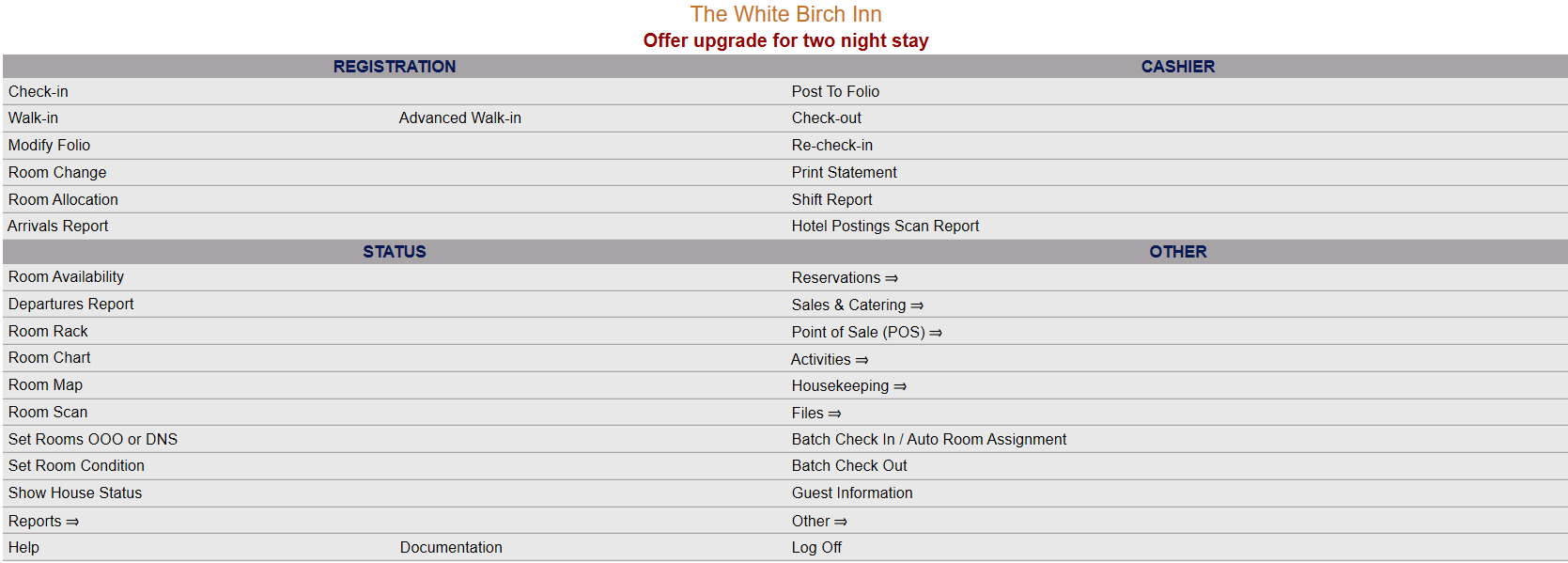 OR
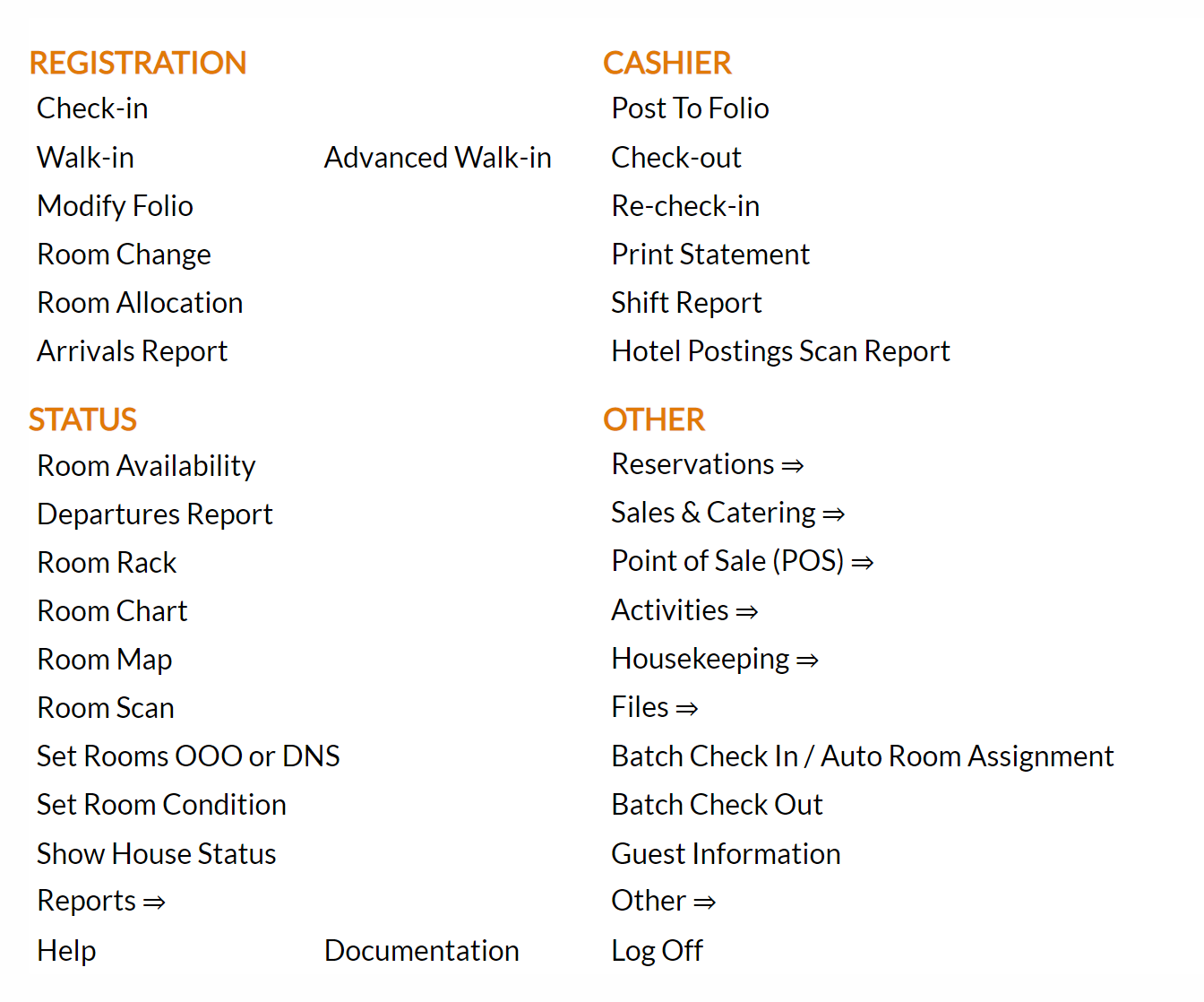
From the Status Section, select Reports.
 OR

The Reports screen is divided into four sections, each containing command links for different types of reports.
 OR

Select the Tax Remittance command from the Room Reports section.
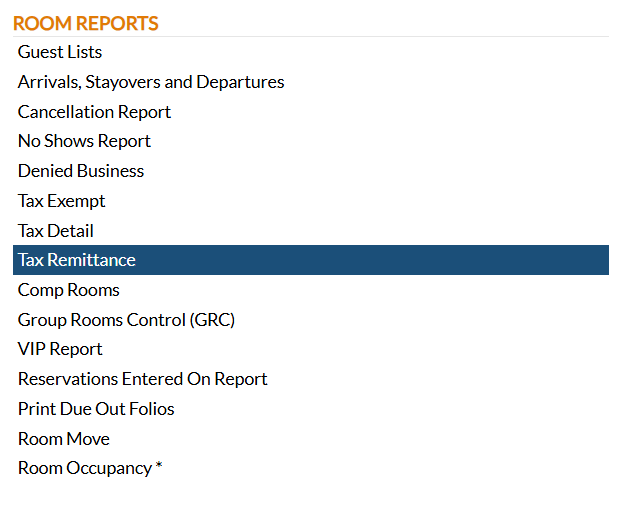
When the Tax Remittance command is selected, the Tax Remittance Report screen will open.
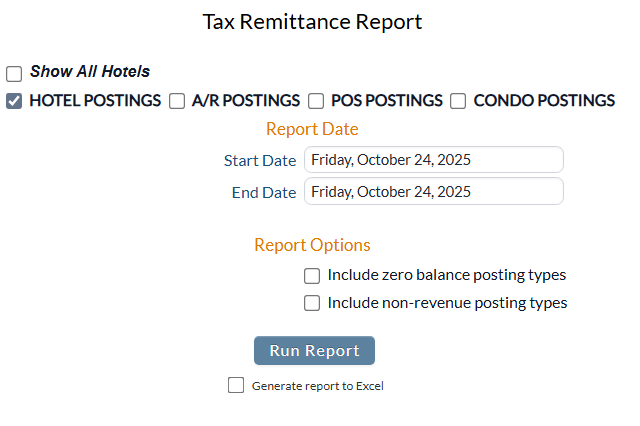
Show All Hotels: This box may be checked or unchecked. By default it is unchecked, meaning the generated report will show information ONLY for the current Property. For this report, you may choose to show the information from ALL your Properties within Skyware on one report, rather than generating separate reports for each Property.
Postings Type: By default the box for Hotel postings will be checked. Selecting any other postings option will automatically un-check the Hotel postings option - only one can be selected at a time.
Report Date: You will need to specify the Date Range for the Report. By default one day of data, for today's system date, will be displayed.
Start: Click anywhere in the field to open the calendar and select the Date you wish to have the Reporting begin for the report. By default the Date selected is the current (system) date.
To: Click anywhere in the field to open the calendar and select the Date you wish to have the Reporting end for the report. By default the Date selected is the current (system) date.
Report Options: You may choose to report on additional data for the Tax Remittance report. By default this is NOT included on the generated report.
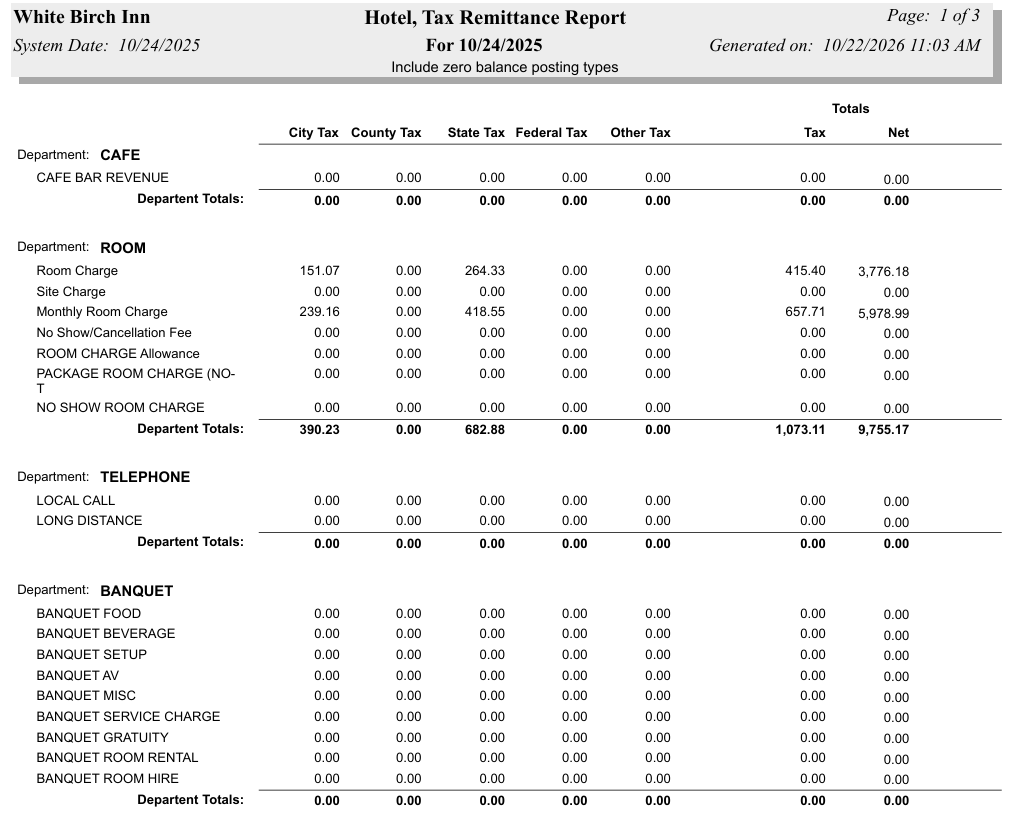
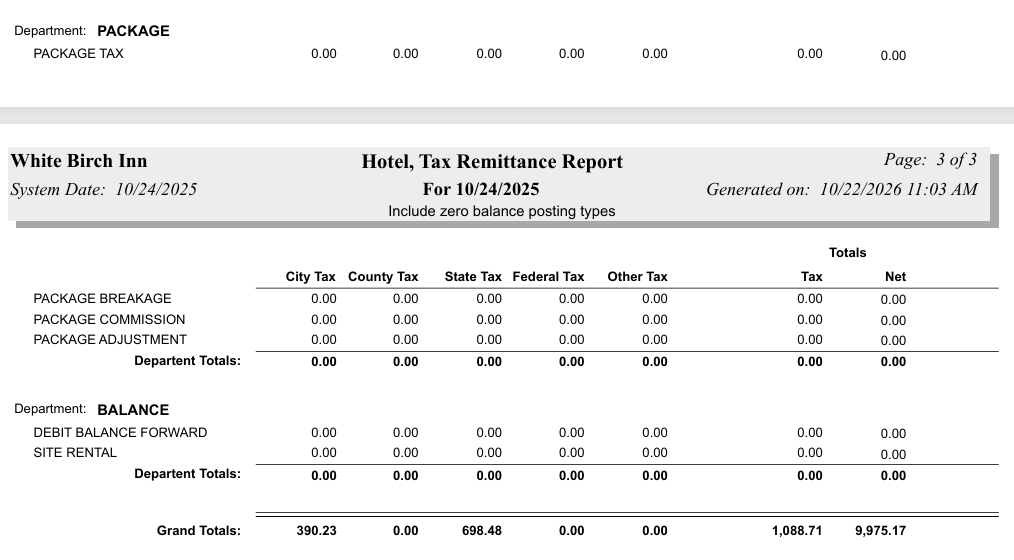
Include zero balance posting types: This box may be checked or unchecked. By default it is unchecked. If checked, the report will also include this information.
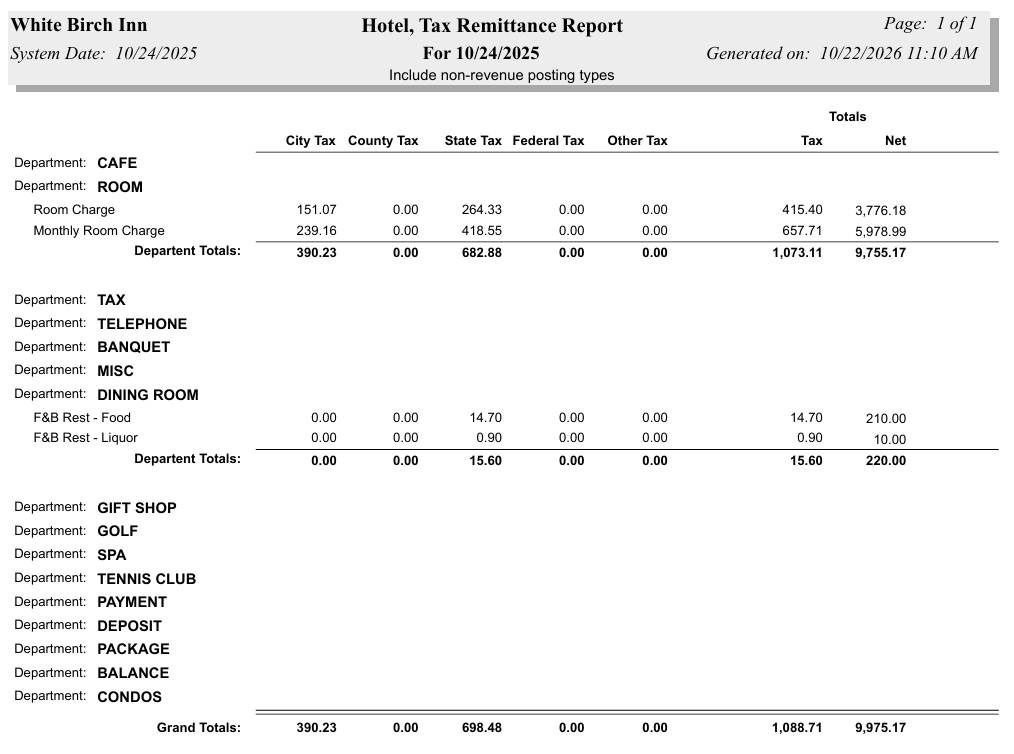
Include non-revenue posting types: This box may be checked or unchecked. By default it is unchecked. If checked, the report will also include this information.
When finished, click the button Run Report.
Default Report example:
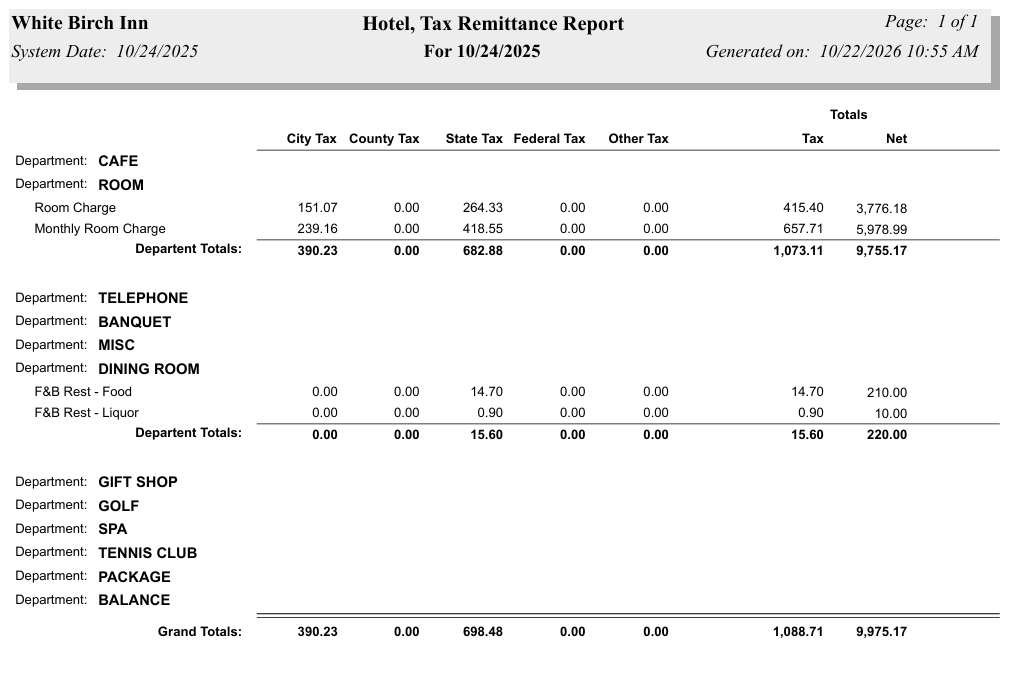
The report shows amounts for City Tax, County Tax, State Tax, Federal Tax, and Other Tax, with Totals for Tax and Net, for each Department, broken down into applicable Posting Types. There is a Grand Totals line showing the grand total for each tax type at the bottom of the report.
Report example with "Include zero balance posting types" box checked:
Report example with "Include non-revenue posting types" box checked:
By default, the report is generated in PDF form and opens in a separate browser window. From there you can select to save or print the report, among other options. You can, instead, check the Generate report to excel checkbox to generate the report in HTML for downloading to Excel instead of PDF.
NOTE: The generated report appears as a pop-up window through your browser. If your browser is set to block pop-ups, you may receive a warning banner at the top of the browser. Click this banner and select to allow pop-ups so that you can view the report.